Appendix B — Know your computer
B.1 Operating System Tools
| macOS | Windows |
|---|---|
| Finder | File Explorer |
| Terminal | Command Prompt |
See Table B.1.
B.2 Terminal (Command Line)
Before the advent of mainstream computer graphical interfaces (e.g. Microsoft Windows and macOS) that display buttons that the user may click with a cursor controlled by a mice, the only way to interact with a computer is by spelling things out (using the keyboard) to the computer on the command line space provided by a terminal.
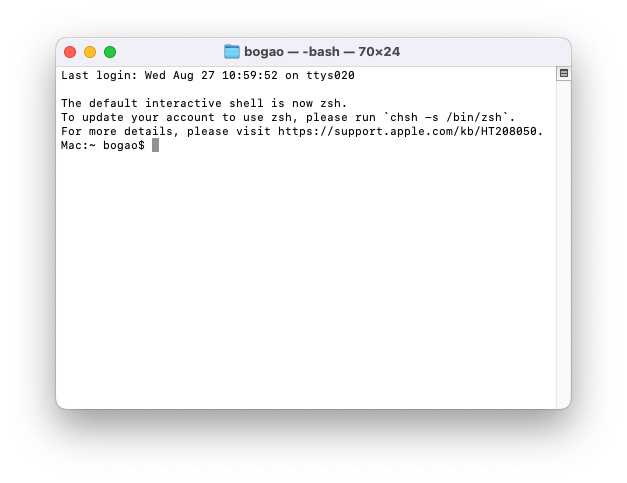
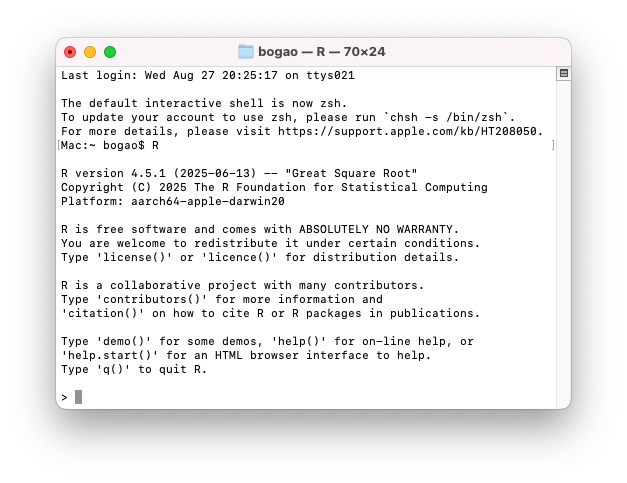
For example, in macOS, Figure B.1 (a) is a screenshot of a system level terminal, and Figure B.1 (b) is a R language specific terminal. These terminals are able to interpret text-based commands that you type between the prompts (e.g. $, >, \>) and the Enter key that you type (which indicates the end of the command in most terminals).
In the literature, you will come across terminologies such as “Console”, “Shell” which implies the same context as “Terminal” and “Command Line” do. To know more about the differences between these terms, read (GeaksforGeeks 2025).
The interactive process that take place in a terminal, for its Read -> Evaluation -> Print -> Read -> Evaluation … sequence of Looped events, is also known as a (language-specific) REPL. This is a common terminology used for interpreted languages such as R and Python that allow this type of interaction.
In the context of this book/module, “R terminal”, “R Console”, “R REPL” all refer to the same program that sends your R commands to the R interpreter and prints the corresponding output back to you on the screen.
In this book:
A
$character at the beginning of the line of code indicate that the code is to be type in to the OS-level terminal. See Figure B.1 (a)A
>or no character at the beginning of the line of code indicate that this is R code which is to be typed in the R terminal. See Figure B.1 (b)
B.3 Developer Tools
B.3.1 macOS
- Xcode Command Line Tools
The Command Line Tools Package is a small self-contained package available for download separately from Xcode and that allows you to do command line development in macOS. It consists of the macOS SDK and command-line tools such as Clang, which are installed in the /Library/Developer/CommandLineTools directory. - (Apple 2017)
To install Xcode Command Line Tools:
$ xcode-select --installTo see where Xcode Command Line Tools is installed on your computer:
$ xcode-select -pTo see what tools have been installed as part of the Xcode Command Line Tools package:
$ ls /Library/Developer/CommandLineTools/usr/bin/You can see tools such as git, g++, make, python3, pip3 installed in that directory. Note that Python developers should download and install Python properly from the official Python site instead of using the version installed with Xcode Command Line Tools.
You can read more about this process from (Asodariya 2025)