Appendix A — File address system
When you organise an event, and you need to tell everyone where it is held, you have a choice to make:
- Give the full address of the location, e.g. Meeting room 5, Big Data Institute, Old Road Campus, University of Oxford.
- Give the location of the event relatively to a known location, e.g. Meeting Room 5, on the same floor as our office.
This is the same when you refer to a file or a directory located on your computer’s hard drive (HD). These two options are referred to as absolute (full) and relative paths of the target file or directory. When it comes to a coding project, it is almost always preferable to use relative paths.
A.1 Absolute path
Every file and directory on your hard drive (HD) has its own address. For example, if you have a file named child.csv which is inside a directory (also referred to as a folder) named parent which is inside another directory named grand_parent, the parent of which is the root of your HD:
[root]
+-- grand_parent
    +-- parent
        +-- child.csv
Depending on which family of operating system(OS) you have, the address of child.csv may be written as:
- On macOS (and other UNIX systems):
/grand_parent/parent/child.csv - On Windows:
C:\grand_parent\parent\child.csv
Representing the full addresses of your file, these strings of characters are also referred to as the absolute paths of your file. Depending on which family of operating system (OS) you have on your computer, the address is formatted differently. Let’s look at this more closely:
The address always begin (from the left) with the biggest identifiable unit that contains the target file. This is the opposite to how you would write an address in real life (in the West). For example, you would write: “University Offices, Wellington Square, Oxford, OX1 2JD, United Kingdom” as the address on a letter addressed to the University of Oxford, starting with the smallest identifiable unit from the left.
Since the file you are addressing for is somewhere on the HD of your computer, the address begins with the symbol that represents the root of your HD. On UNIX systems, this is the
/character, and on Windows, this is theC:\character string.1 If we were to have an equivalent address for the University of Oxford, it probably would begin withEarth🌍.As we look towards the end (right) of the address, there is a zoom-in process with the identifiable unit (the directories or folders) getting smaller and smaller until it gets to the file that you are addressing for. All these identifiable units need to be concatenated. We don’t like having blank spaces in addresses, but we still need a way to separate the names of these units. This separator character is
/on UNIX, and\on Windows.Given the definition of the separator characters, you might review our definition of the roots, and say that the root is
[nothing]on UNIX, andC:on Windows, with the first/and\character in the string being the separator between the root and the first directory on the path.
1 With C indicating the C drive. And yes, there was at a time A and B drives too, and D drive (on the same HD) which went out of fashion not long ago.
- These examples are known as absolute paths, in that these paths begins (on its left) from the root directory and spell out absolutely everything that’s along the way to your file.
When you browse the web, look at the address bar at the top of your browser. Each resource that’s published on the internet also has an address. Ask yourself, what is the root and separator character in that address system?
A.1.1 Why you should not use absolute path in your code
Along the whole string of characters on an absolute path, you have the names of all of the directories until you get to the file you want. The directory structure differs from machine to machine, and it is very unlikely that you would have identical directory structures on two machines.
For example, Adam is working on a project that involves two files on his laptop:
/Users/adam/Projects/big_project/data.csv, a csv file that contains some data/Users/adam/Projects/big_project/process_data.r, an R script that processesdata.csv
In process_data.r, he wrote the following to read the csv file:
You can see that he specified the path of the file (in file_to_read) using the absolute path of data.csv. This script (process_data.r) works perfectly fine on Adam’s machine.
For the next step of the project he needs to send it to Eve who wants to extend the work. So Adam sends these two files (data.csv and process_csv.r) to Eve via email. Eve downloaded these two files from the email attachment to her laptop. On her laptop, the absolute paths of these two files are:
/Users/eve/Downloads/data.csv/Users/eve/Downloads/process_data.r
Now, Eve wants to run Adam’s code (process_data.r, Listing A.1) to see what it produces. Given what we know about the absolute path of data.csv on Eve’s laptop in comparison to that on Adam’s laptop, do you think the script would run correctly on Eve’s machine?
Of course not, because in Adam’s code (Listing A.1), the path of data.csv is given as /Users/adam/Projects/big_project/data.csv which does not exist on Eve’s machine. On Eve’s laptop, the absolute path of data.csv is /Users/eve/Downloads/data.csv.
In order for the code to work, Eve will need to modify process_data.r (Listing A.1) to be:
Don’t under-estimate the negative impact of this extra step of work. Although the work involved is not technically complex or challenging, it creates a barrier between different collaborators of the project.
- Yourself. Yes, you are collaborating with yourself, the future you. That you in a couple of days/weeks/months’ time. You are handing over the development of this project to the future you. Will that you be able to understand everything that you are writing now? How easy will it be for you to pick this project up in the future? Will that future you hate the now you?
- Your assignment and dissertation marker. They are very judgemental, and they expect your code to work without modification.
- Others working on the same project.
In this example, the script only requires one other file. That is far from reality. The workload increases dramatically as your project grows. What if Eve has extended the code and it now works with 10 csv files, and now she needs to pass the project back to Adam? What’s the workload needed from Adam’s end?
Absolute paths are only likely to be valid on one machine, and that it is a terrible idea to use absolute paths to specify file locations in a coding project.
All the characters preceding data.csv are invalid on Eve’s laptop. And this section of the absolute path can be seen as in two parts:
- The first part
/Users/adamis written to comply with the setting of the OS. The OS has full control of the HD that it is installed on, and you as the user is only allowed to operate within a designated space on the HD, which in this case is/Users/adam. The first/refers to the root of the HD. The next directory name isUsersbecause macOS saves all user files in that directory (Figure A.1). Adam as the user has no control over this.
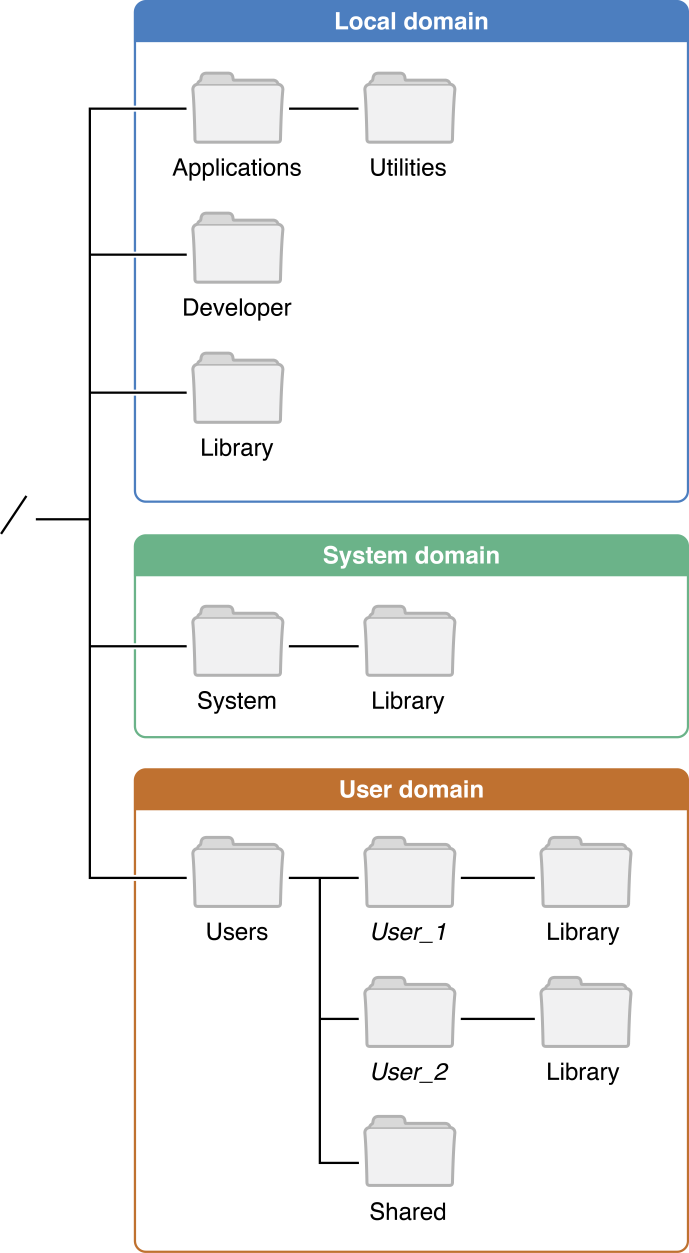
In Figure A.1, note where the (local domain) Library directory is in relation to the other system directories. If you installed R or Python correctly on your macOS, then you should be able to find them in the following two directories:
/Library/Frameworks/R.framework
/Library/Frameworks/Python.framework
Not only do we as the users not have control over the names of these OS-defined directory names, we also don’t have control over what OS/settings the other users have on their machines. (The user has control over what username is used, but that’s done only once when the user account is created by the OS for the user, and users are not expected to change this once it has been set up.)
- The next part of this absolute path (
/Projects/big_project), is decided by the user Adam, and we cannot expect Eve to have the same habit of naming directories on her laptop.
A.2 Relative Path
To avoid the issues that come with absolute paths, we need an alternative way to specify the location of a file/directory which is valid across machines. Essentially, we want to do /Users/adam/Projects/big_project/data.csv ignoring everything that’s outside the scope of the project. In fact, that’s not too far from how relative paths are constructed:
With . denoting the project’s root directory, the relative path to data.csv which is equivalent to /Users/adam/Projects/big_project/data.csv in the context of the big_project project is:
./data.csv
The key here is the definition of .. Within the context of a project, . refers to the current working directory of the project which by default is the root directory of the project.
Let’s look at these concepts with our Adam and Eve example. Assuming that Adam and Eve are now working collaboratively on the big_project project with Adam taking the lead role. They both use macOS. Adam saves all his projects in a directory named Projects. Eve has moved everything out of the Downloads folder and has created a directory named Others_projects that contains projects that she works collaboratively with other people:
Adam’s laptop
/
+-- Users
    +-- adam
        +-- Projects
            +-- big_project
            |   +-- data.csv
            |   +-- process_data.r
            +-- another_project
            |   +-- data
            |   |   +-- log_day_1.csv
            |   |   +-- log_day_2.csv
            |   +-- main.r
            |   +-- script_01.r
Eve’s laptop
/
+-- Users
    +-- eve
        +-- Downloads
        +-- Others_projects
            +-- big_project_adam
            |   +-- data.csv
            |   +-- process_data.r
On Adam’s laptop, we see that he is working on two projects both of which are saved under his Projects directory. Each of the two directories (big_project and another_project) under the Projects directory contains files relevant to each of the two projects respectively, and therefore are the root directories of those two projects.
On Eve’s laptop, big_project_adam is the root directory of Eve’s copy of Adam’s big_project project.
Orienting from the root directory of the big_project project, with relative path, instead of writing our address beginning from the root of the HD (i.e. /), we begin our address referring to the root directory of the project with a .. With this approach, process_data.r is written as:
Adam and Eve now have identical process_data.r that works on their own as well as each other’s machines.
Using absolute path, Adam and Eve’s copy of process_data.r would need to have different values assigned to the file_to_read variable:
A.3 The .
. denotes the current working directory which refers to the project’s root directory in the context of a coding project by default. Compared to /, . is context-specific. Meaning that . is interpreted differently under different projects. You will learn more on how this works in R from Section 14.3.
One other remaining issue with paths is the separator character which is different on different platforms. In R, we solve this issue with the file.path function. You will learn more on this from Section 14.4.