14 Working with files
When your code refers to a file on your HD, the first thing it needs is the address of that file. The address contains directory names and file name which works as a path that leads the code to the target file, therefore we also refer to the address as the path of the file.
There are two methods to compose the path of a file, namely absolute path and relative path. Read Appendix A first if you are not familiar to the differences between these two concepts.
In this section, we assume that we are working within an R project all relevant files of which are saved under one directory which we refer to as the root directory of the project. And we only use relative paths that begins from this root directory to address our target files.
The example project has the following directory structure:
+-- Projects
    +-- work_w_files
    |   +-- data
    |   |   +-- log_day_1.csv
    |   |   +-- log_day_2.csv
    |   +-- main.R
    |   +-- script_01.R
14.1 Working directory
Every time you open RStudio or start an interactive session (REPL), a Working Directory is set for that session. This is so that R knows where you are in the file system, to prepare for any I/O operations.
This is similar to when you press the “Crew” button on an flight cabin. In order to answer your call, the first piece of information the cabin crew needs to know is where you are in the cabin.
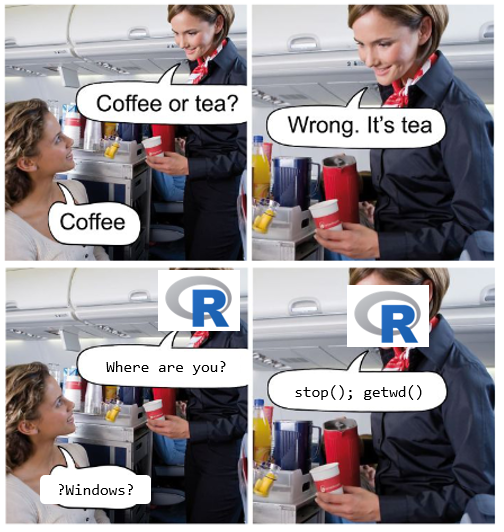

- The default working directory for RStudio (when no project is open) is the user’s home directory, which is:
- on macOS is
/Users/[your user name] - on Windows is
C:/Users/[your user name]/Documents
- on macOS is
- You can find out what your current working directory is by calling the
getwd()function - You can change the working directory with
setwd - Use
file.pathto concatenate your directory names
14.2 save, load
savewrites an external representation of the current workspace/global environment to a file. That includes everything (Data, Values, Functions) that you see in theEnvironmenttab.save.image()is a short-hand version ofsave. A file named.RDatais created in the current working directory that contains everything in your current global environment.loadreloads everything that was saved in the RData file into the global environment (default, specified by theenvirargument)
- You can also select the objects that you wish to save to the file
14.3 Working directory
14.4 file.path
14.5 save, load
We introduced save and load in session 1. We did not introduce the concept of environment then. So here we give an example of loading an R datafile into an environment.
14.6 summary
Use summary for an overview of the dataset
14.7 read.table
?read.table- Reads a file in table format and creates a data frame from it, with cases corresponding to lines and variables to fields in the file.
Patients admitted to hospital, daily, Oxford University Hospital NHS Foundation Trust, data downloaded from this link.
read.csv is a shorthand call on read.table
We also notice that instead of “characters”, the columns now have the correct type. This is due to the different defaults on the header parameter
Let’s read a header-less version of the csv with file.path
More from the documentation ?read.table:
read.table(file, header = FALSE, sep = "", quote = "\"'",
           dec = ".", numerals = c("allow.loss", "warn.loss", "no.loss"),
           row.names, col.names, as.is = !stringsAsFactors,
           na.strings = "NA", colClasses = NA, nrows = -1,
           skip = 0, check.names = TRUE, fill = !blank.lines.skip,
           strip.white = FALSE, blank.lines.skip = TRUE,
           comment.char = "#",
           allowEscapes = FALSE, flush = FALSE,
           stringsAsFactors = FALSE,
           fileEncoding = "", encoding = "unknown", text, skipNul = FALSE)

read.csv(file, header = TRUE, sep = ",", quote = "\"",
         dec = ".", fill = TRUE, comment.char = "", ...)

read.csv2(file, header = TRUE, sep = ";", quote = "\"",
          dec = ",", fill = TRUE, comment.char = "", ...)

read.delim(file, header = TRUE, sep = "\t", quote = "\"",
           dec = ".", fill = TRUE, comment.char = "", ...)

read.delim2(file, header = TRUE, sep = "\t", quote = "\"",
            dec = ",", fill = TRUE, comment.char = "", ...)
From the above documentation, we can see the difference in parameter values between each of the read.x function.
Take a look at read.csv’s implementation:
function (file, header = TRUE, sep = ",", quote = "\"", dec = ".",
    fill = TRUE, comment.char = "", ...)
read.table(file = file, header = header, sep = sep, quote = quote,
    dec = dec, fill = fill, comment.char = comment.char, ...)
<bytecode: 0x10fc3a588>
<environment: namespace:utils>
A few useful parameters:
stringsAsFactors
as.is(?read.table:as.is = !stringsAsFactors)
strip.white
- Date column
14.8 write.csv
The opposite of reading a file is to write one to the disk, ?write.csv:
Note write.csv and write.csv2 has different parameter defaults althought they are not shown in the documentation
See implementation of write.csv
row.names
na
Compare the outputs from the two calls of write.csv
14.9 Excel spreadsheet
- To read Excel spreadsheet we use the
readxllibrary from tidyverse. - Because it is part of
tidyverse, the returned data set is atibble.
library(readxl)
# the package comes with example data files
readxl_example()
file_name <- readxl_example("datasets.xlsx")


read_excel(file_name) # reads sheet 1 by default
excel_sheets(file_name)
read_excel(file_name, sheet = "quakes")
read_excel(file_name, sheet = "quakes", range = "B4:D8") # no header
For more information:
?read_excel- https://readxl.tidyverse.org/
14.10 Other statistical systems
Other statistical systems are available, to communicate with files used in those systems, we use the foreign package. We give example of importing a .sav from from SPSS. Read more on this: Importing from other statistical systems